68‑2308‑01 Rev. A
04 13
2
© 2013 Extron Electronics All rights reserved. www.extron.com
g
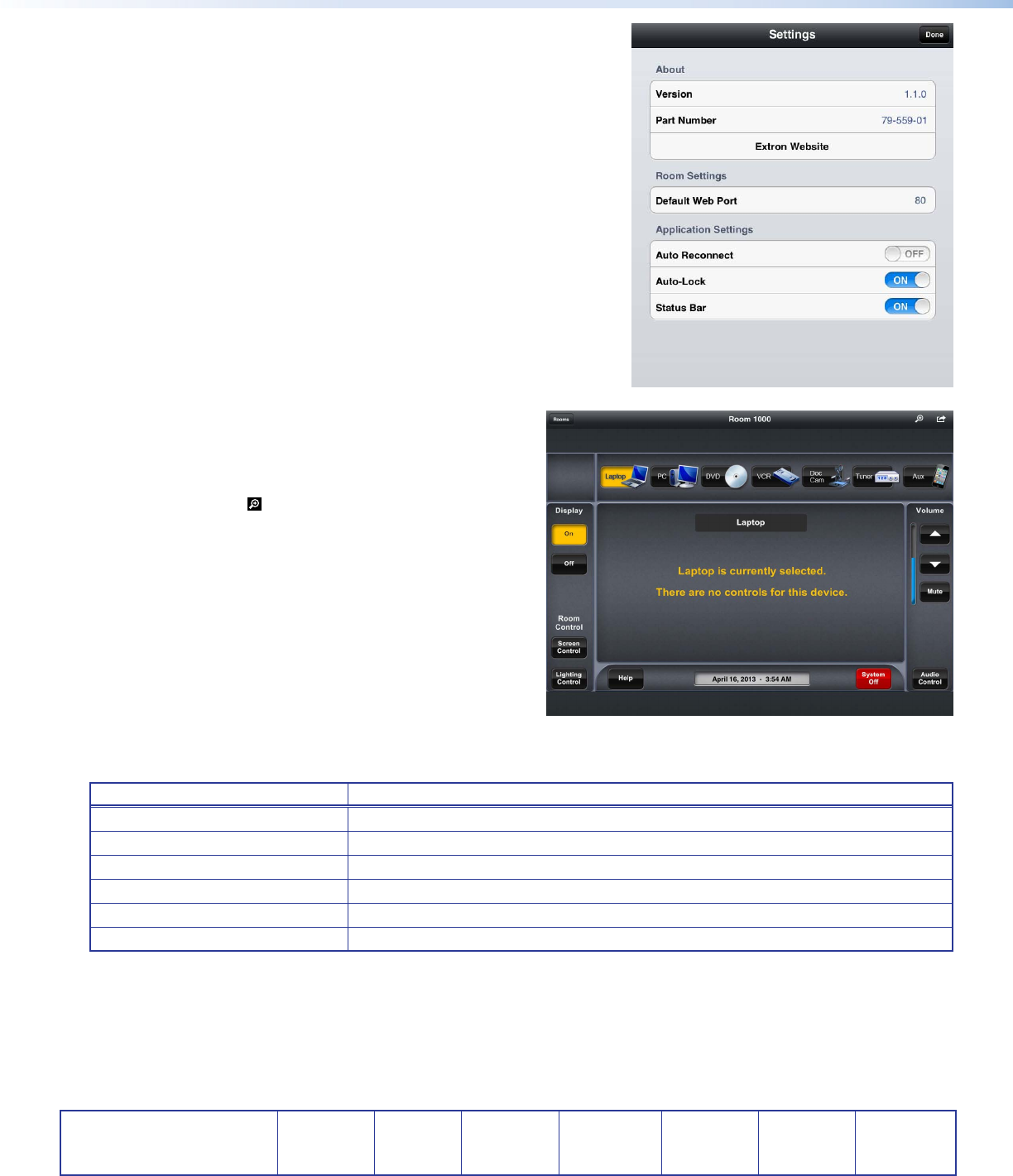
Action Button — Tap on the Action icon. A drop‑down menu offers two
options: Settings and Demo.
The Settings dialog shows the version number and the part number of the
app and provides a link to the Extron website (www.extron.com).
The Default Web Port sets the default web port value when adding new
rooms.
There are also three settings (Auto Reconnect, Auto‑Lock, and Status Bar)
that can be toggled on or off.
z Auto Reconnect allows the iPad to try reconnecting to the Touchpanel
whenever the app restarts.
z Auto‑Lock allows the app to override the iPad Auto‑Lock setting.
z Status Bar hides or shows the iPad status bar.
Tap the Done button to close the dialog.
The Demo dialog provides access to two demonstration rooms that
allow the user to see how the app works. The demonstration rooms are
preloaded onto the iPad. No network connection is required.
Control Surface
Tap on the Control button (
h
) to open the control surface.
During the connection process, the iPad displays the Loading
screen, and then the Synchronizing screen. If successful, the
appropriate Touchpanel screen opens.
Use the scaling button ( ) to toggle between “No Scaling” and
“Scale to Fit” to adjust the size of the Touchpanel screen that is
viewed. When scaled to t, the touchpanel bezel is hidden and the
background turns black.
Pressing buttons on the iPad screen allows you to control the
system in exactly the same way as pressing the buttons on the
Touchpanel screen.
To control a different Touchpanel, tap the Rooms button and select
a new room from the drop down menu. The iPad will close the
existing connection and connect to the new device.
To hide or show the navigation bar, use the pinch out or pinch in
gestures respectively.
Troubleshooting
Problem Explanation/Action
1. Connection error The controller at that IP address is off‑line.
2. Password error Enter the correct administrator or user password.
3. Conguration error The controller or Touchpanel at the IP address is not congured to work with the app.
4. Primary Touchpanel error The Touchpanel at that IP address is off‑line.
5. Network unavailable The iPad is not connected to the network.
6. Navigation bar not visible Use the “pinch in” gesture to reveal the navigation bar.
For further assistance, visit the Extron S3 support web page at www.extron.com/company/contactus.aspx.
Extron Headquarters
+1.800.633.9876 (Inside USA/Canada Only)
Extron USA ‑ West Extron USA ‑ East
+1.714.491.1500 +1.919.850.1000
+1.714.491.1517 FAX +1.919.850.1001 FAX
Extron Europe
+800.3987.6673
(Inside Europe Only)
+31.33.453.4040
+31.33.453.4050 FAX
Extron Asia
+65.6383.4400
+65.6383.4664 FAX
Extron Japan
+81.3.3511.7655
+81.3.3511.7656 FAX
Extron China
+86.21.3760.1568
+86.21.3760.1566 FAX
Extron Middle East
+971.4.299.1800
+971.4.299.1880 FAX
Extron Korea
+82.2.3444.1571
+82.2.3444.1575 FAX
Extron India
1800.3070.3777
(Inside India Only)
+91.80.3055.3777
+91.80.3055.3737 FAX

 (1 stránky)

 (19 stránky)
 (28 stránky)
 Manymanuals.com
 Manymanuals.de
 Manymanuals.fr
 Manymanuals.it
 Manymanuals.pl
 Manymanuals.cz
 Manymanuals.es
 Manymanuals-pt.com
Komentáře k této Příručce