Extron Control App • User Guide (Continued)
2
Configuration
IP Link Control System
Secondary user interface control
TouchLink
z The Enable Virtual TouchLink option in Global Congurator must be selected to use the Extron Control app (see the
GlobalConfigurator 3 Help le).
z Enable the Synchronize TouchLink Panel option for the Extron Control app to synchronize states with the TouchLink
panel when a room loads. If this option is not checked, the app goes to the default state and may not be in sync with the
TouchLink panel (see the GlobalConfigurator 3 Help le).
z Local actions are not supported by the Extron Control app. It is recommended that all local actions be removed from
GUICongurator and congured with Global Congurator instead.
MediaLink
z Secondary control interface is always enabled when a MediaLink controller is congured. No special conguration is required.
IP Link Pro Control System
Primary user interface control
z Create an Extron Control layout using GUI Designer and congure that layout using Global Congurator Plus or Professional.
Secondary user interface control
z Secondary control interface is always enabled when a primary user interface is congured. No special conguration is
required.
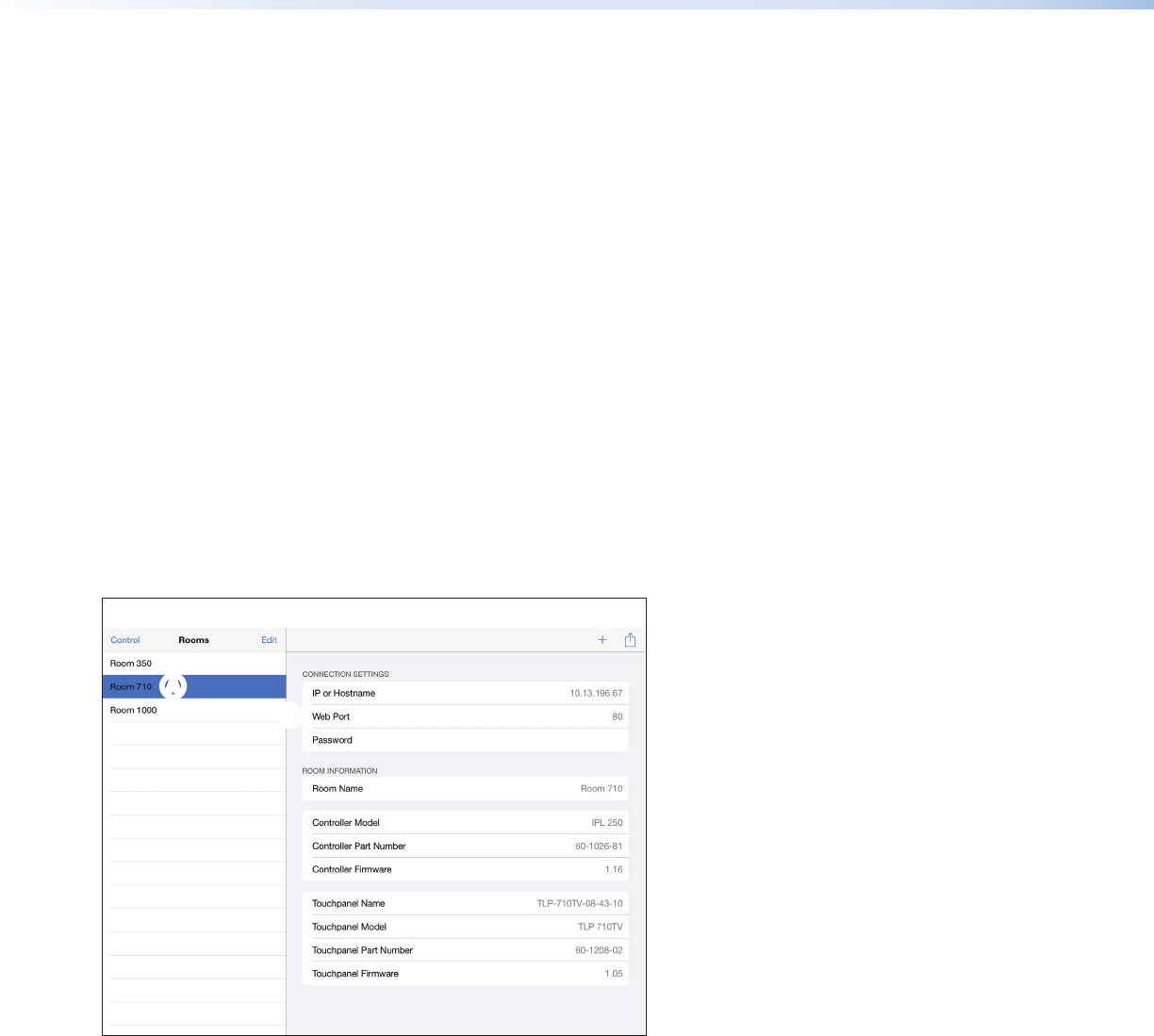
Room Manager Screen
AA
B
B
C
EFF
A
Room List
B
Room Properties
C
Edit Room List
D
Add Room
E
Action Button
F
Control Button
A
Room List — Shows a list of all the room names. Each room contains a user interface that has previously been congured to
be controlled by the iPad. Tap a room to highlight it.
To delete a room, swipe it to the left and click Delete.
B
Room Properties — When a room is highlighted, a list of its properties is displayed. None of these properties can be edited
in this screen.
C
Edit Room List — Allows you to perform the following:
z Sort or delete the rooms in the list.
z Drag and drop a room to a new position in the list using the reorder icon.
z Delete a room by tapping on the minus icon and then on the delete button that appears in that row.

 (2 stránky)
 Manymanuals.com
 Manymanuals.de
 Manymanuals.fr
 Manymanuals.it
 Manymanuals.pl
 Manymanuals.cz
 Manymanuals.es
 Manymanuals-pt.com
Komentáře k této Příručce